How to Compress PDF Without Losing Quality

Achieving significant file size reduction doesn't mean your documents have to look pixelated or blurry. Here is how to strike the perfect balance between file size and visual fidelity.

Your files are never uploaded to our servers — all compression happens right inside your browser

Drop your PDF files here

or pick several files at once from your device

Understanding the Quality vs. File Size Tradeoff

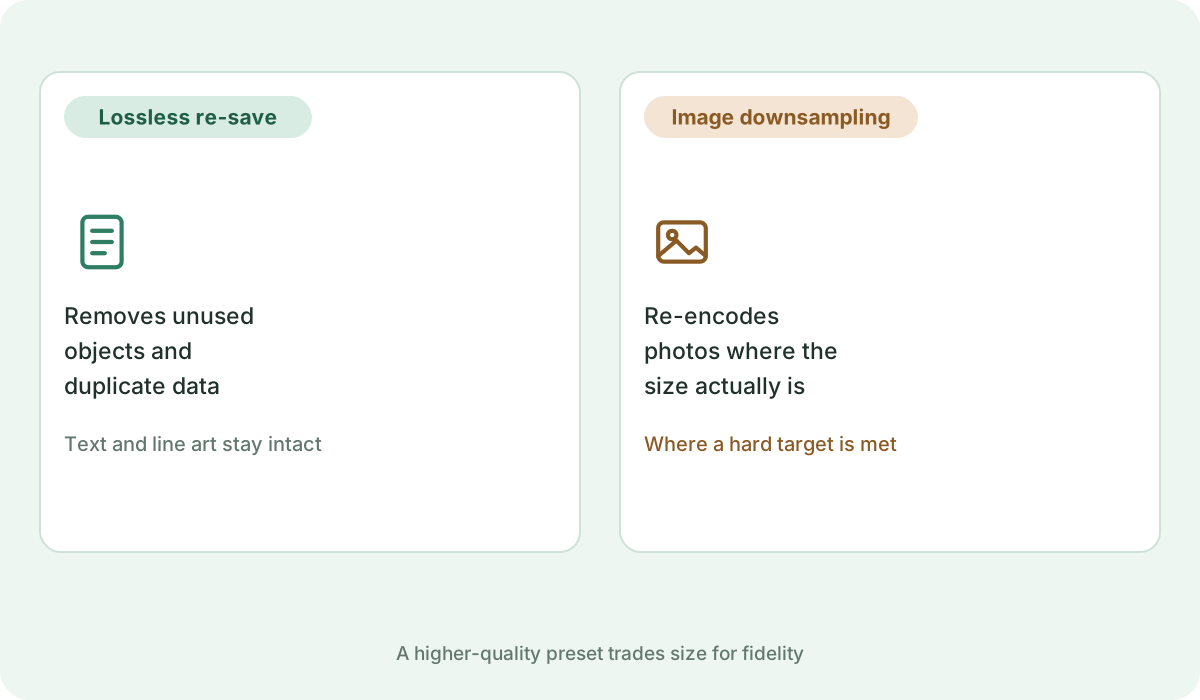
Every PDF compression algorithm balances two opposing forces: visual clarity and byte reduction. Text and vector linework can usually be preserved losslessly, while photographs and image backgrounds require downsampling. The secret to high-quality compression is knowing where to optimize and where to preserve.

1. Keep Text Crisp at All Zoom Levels

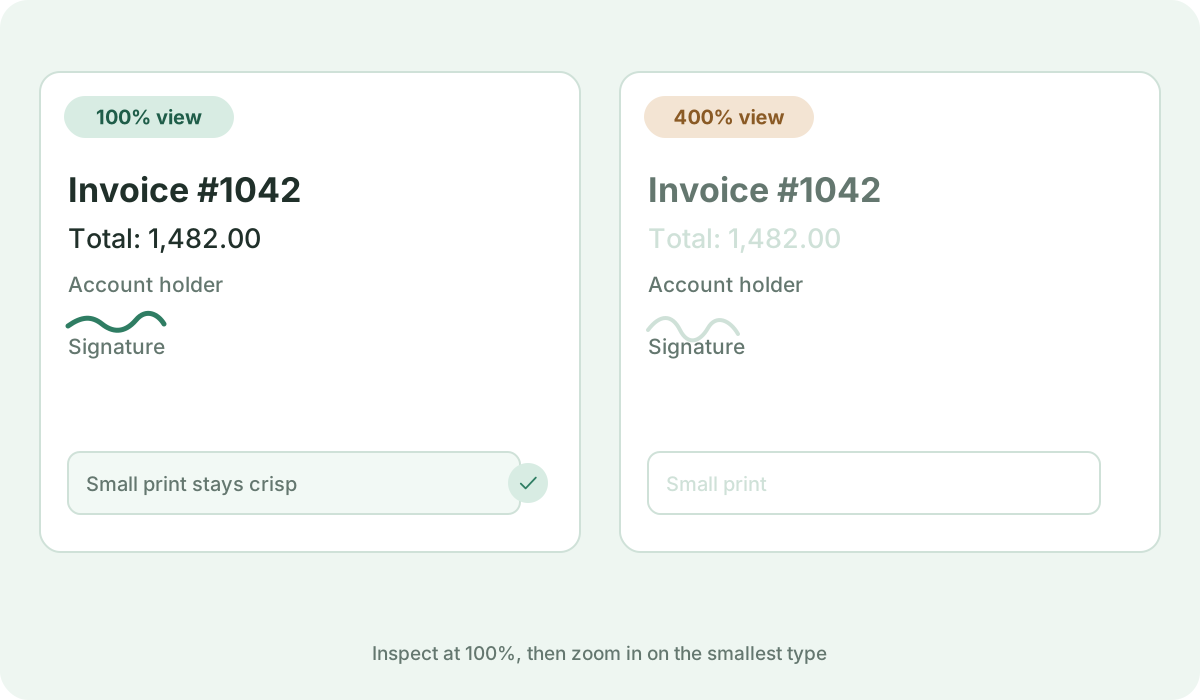
When text is stored as true vector typography, it remains tack-sharp whether viewed on a 6-inch phone screen or a 32-inch 4K monitor. Our compression engine prioritizes keeping vector text untouched whenever possible, only applying intelligent compression to embedded background imagery.

2. Target 150 DPI for Digital Reading & Printing

While professional offset printing presses demand 300 DPI, modern Retina and OLED computer screens display images at 72 to 150 DPI. Downsampling images to 150 DPI cuts file size in half while appearing completely indistinguishable from the original to the human eye.

3. Choose the 'High Quality' Preset

On Kompres PDF, the High Quality preset employs a generous rendering scale factor (1.6x) and high-quality JPEG quantization (0.85). This preset is engineered specifically for legal agreements, design portfolios, resumes, and client presentations where visual perfection is paramount.

4. Always Inspect Before Distributing

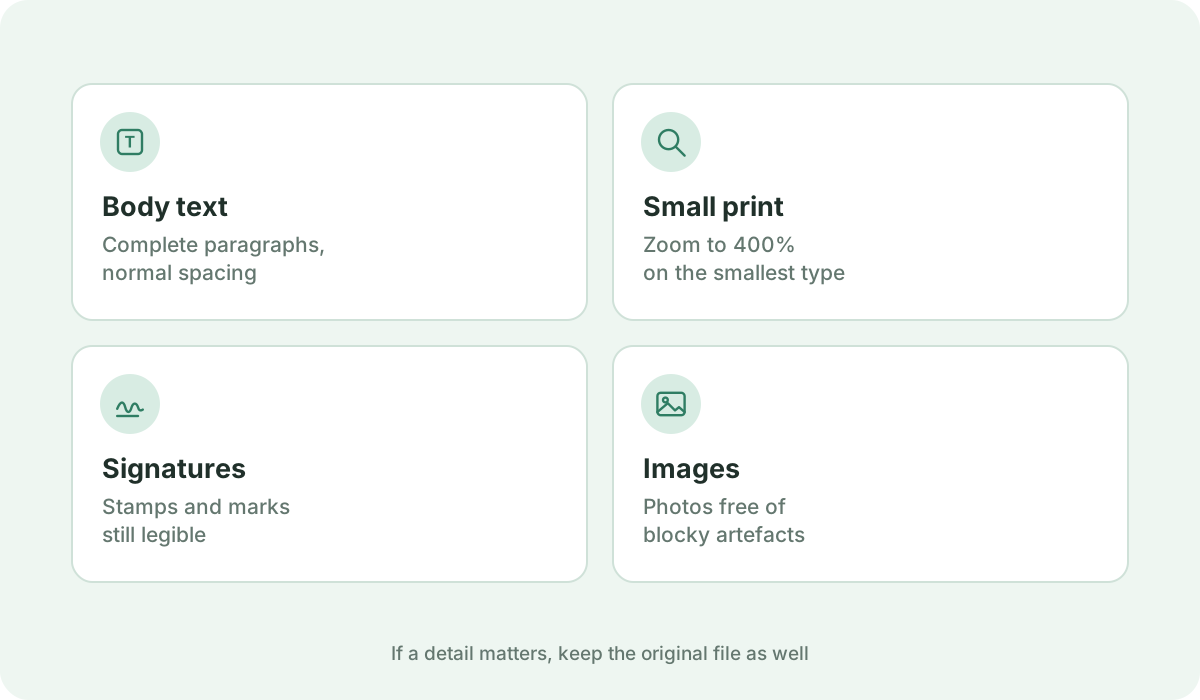
After compressing, download your document and zoom in to 200% on photos, diagrams, and small disclaimer text. If any artifacting is apparent, switch to a lighter preset or a higher target file size.

Frequently asked questions

Is it possible to compress a PDF 100% losslessly?

Yes, by removing redundant metadata, duplicate font instances, and compressing internal object streams. However, lossless compression typically yields 5% to 15% reduction. For 50%+ reduction, perceptual image optimization is required.

Will my signatures and company logos look pixelated?

Not with the High Quality or Balanced presets. High contrast edges in logos and handwritten signatures are preserved cleanly.

Which preset should I use for printing?

Use High Quality. It preserves sufficient pixel density and sharp contrast for clean output on office and home laser printers.