How to Compress a Scanned PDF

Scanned PDFs are among the largest and most unwieldy documents on the web. Learn why scanner outputs balloon in size and how to shrink them effectively.

Your files are never uploaded to our servers — all compression happens right inside your browser

Drop your PDF files here

or pick several files at once from your device

Why Scanned PDFs Are So Massive

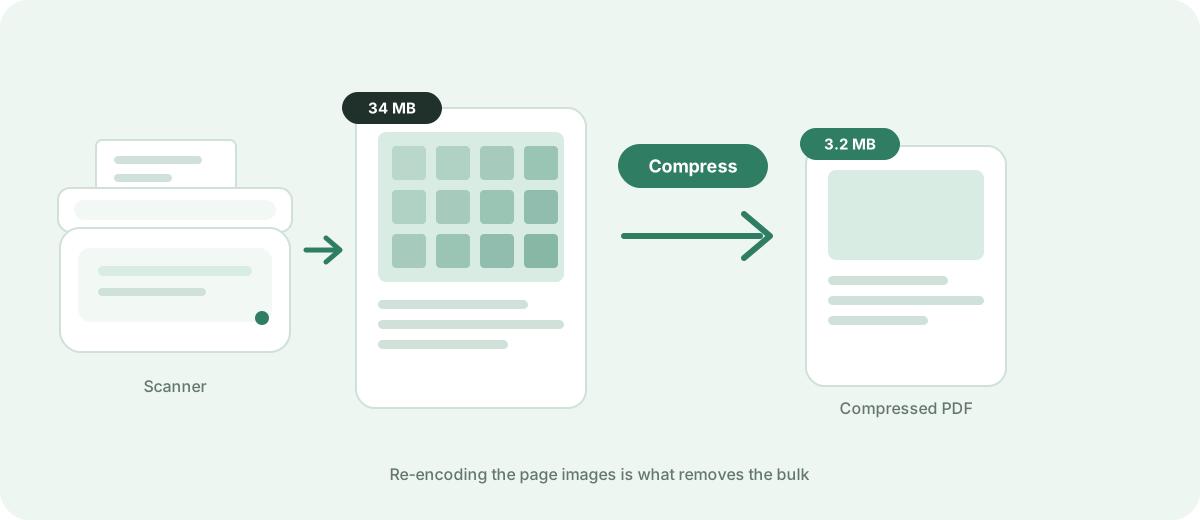
Unlike PDFs generated directly from Word or Google Docs — which contain lightweight vector typography and simple geometric shapes — a scanned PDF is essentially a collection of massive, high-resolution raster images (bitmaps) wrapped in a PDF container. A 10-page document scanned at 300 or 600 DPI in uncompressed 24-bit color can easily balloon to 50 MB or 100 MB.
The Role of DPI (Dots Per Inch) in Document Size

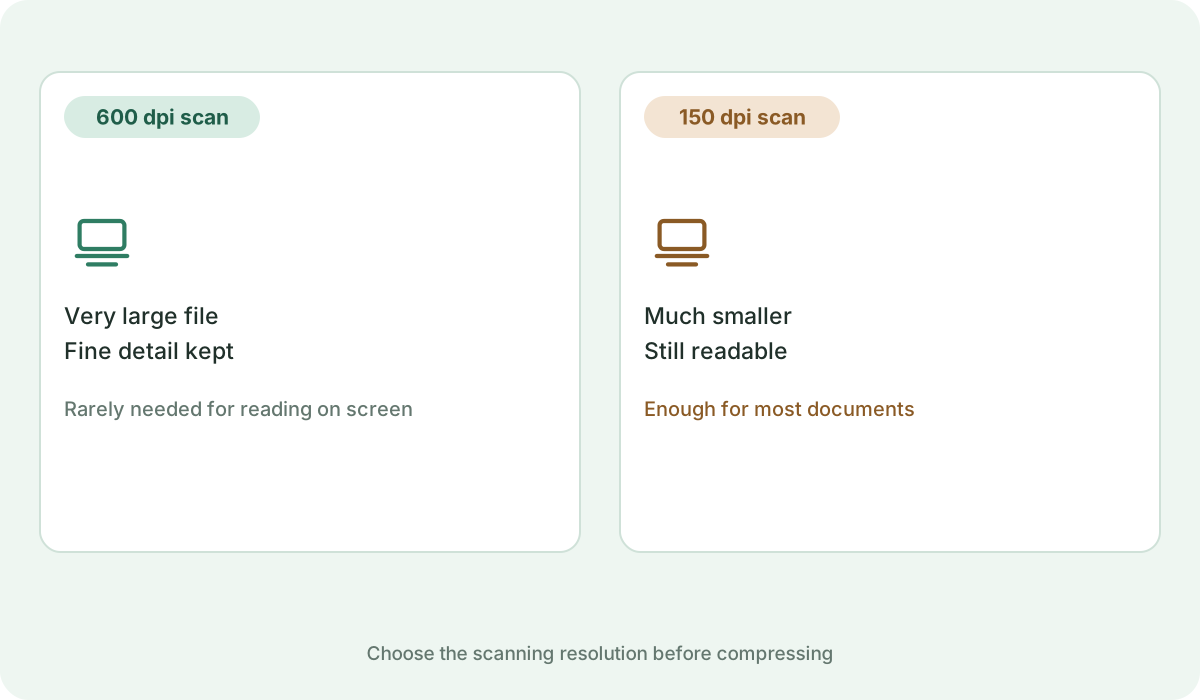
Standard desktop scanners default to 300 DPI (dots per inch), which is necessary for archival printing but completely excessive for screen viewing or email distribution. Reducing the image density from 300 DPI to 150 DPI reduces the total pixel count by 75%, immediately cutting file weight by three quarters without visible degradation on computer monitors or phone screens.

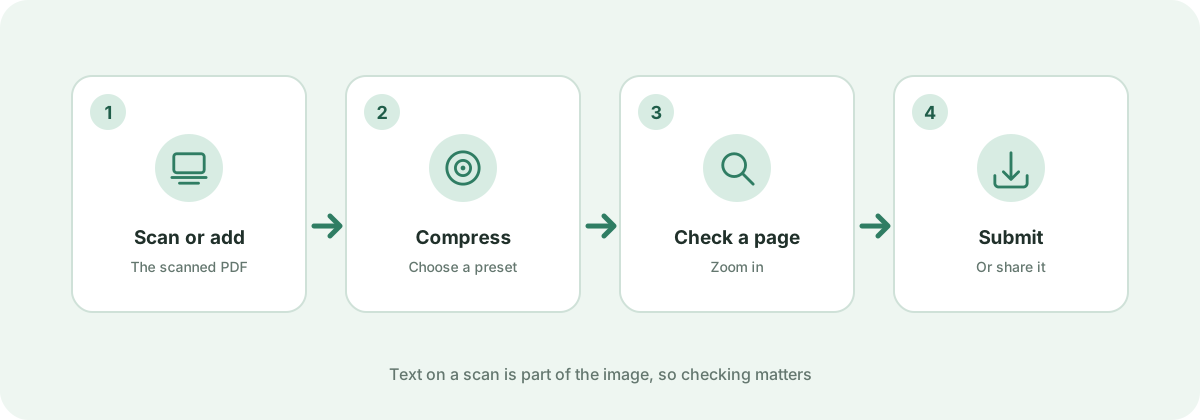
Step-by-Step: Compressing Scanned Documents

Follow this proven process to shrink scanned files:

  • Step 1: Drag your scanned PDF into the compressor above.
  • Step 2: Choose the 'Balanced' preset for standard correspondence, or 'Smallest Size' if the scan is primarily black-and-white text.
  • Step 3: Click 'Compress Now'. The browser will render each scanned page onto an optimized canvas and re-encode it with modern JPEG compression.
  • Step 4: Review the percentage saved (typically 50% to 85% for raw scans) and download your compact file.

Avoiding Common Scanning Mistakes

For future scanning tasks, switch your scanner utility from 24-bit True Color to Grayscale or Monochrome (Black & White) when scanning text documents. This single change eliminates two color channels per pixel before compression even begins.

Frequently asked questions

Why didn't standard PDF compression shrink my scanned file?

Generic PDF tools often only remove metadata and compress vector font streams. Because scanned PDFs are pure bitmap images, they require image re-sampling and raster compression, which Kompres PDF performs automatically.

Can I still run OCR (optical character recognition) after compression?

Yes. With the High Quality and Balanced presets, letter shapes remain crisp and high-contrast, allowing OCR search tools to recognize characters reliably.

How much smaller can a scanned PDF get?

Scanned documents typically achieve the highest reduction rates of any PDF type — often shrinking between 60% and 85% from their original scan size.